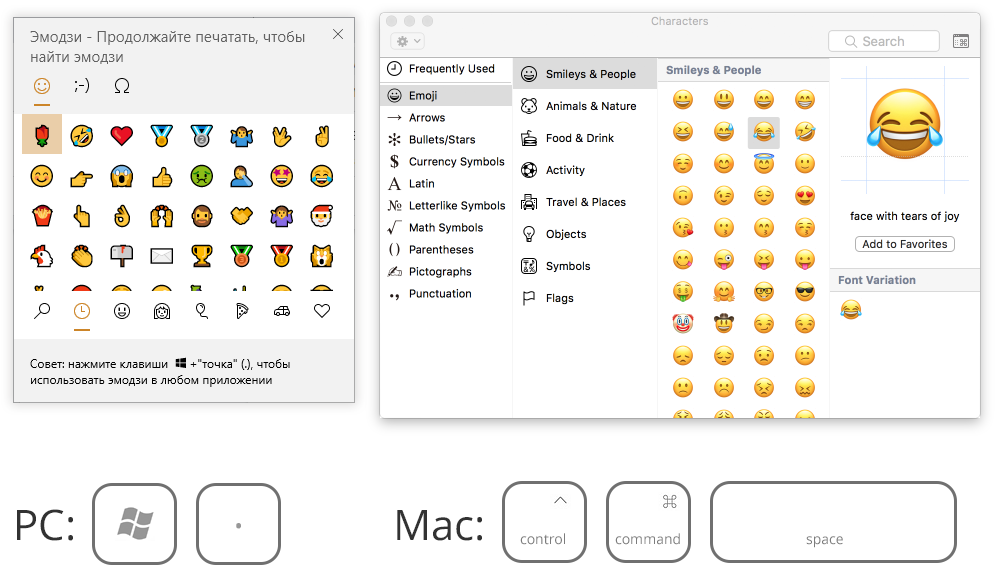
We believe that it’s rather strange to make an integral emoji pack in 2020. Hundreds of new emojis appear with every iOS and Android update. We can’t keep pace with these renewal rates. Let us remind you that you can add an emoji by pressing win + . (dot) on Windows. On Mac use Control+Command+Space. Hope you know how to do it on smartphones. 🤪
Yes you can. But only if you are at the PRO tariff. There are two kinds of moderators in Tolstoy Comments: public (without access to the administration panel) and regular (with limited access to the administration panel and ability to ban users).
Read in our blog about what is the difference between public and regular commentators, other pitfalls and how not to screw up when the moderators start banning all your community.
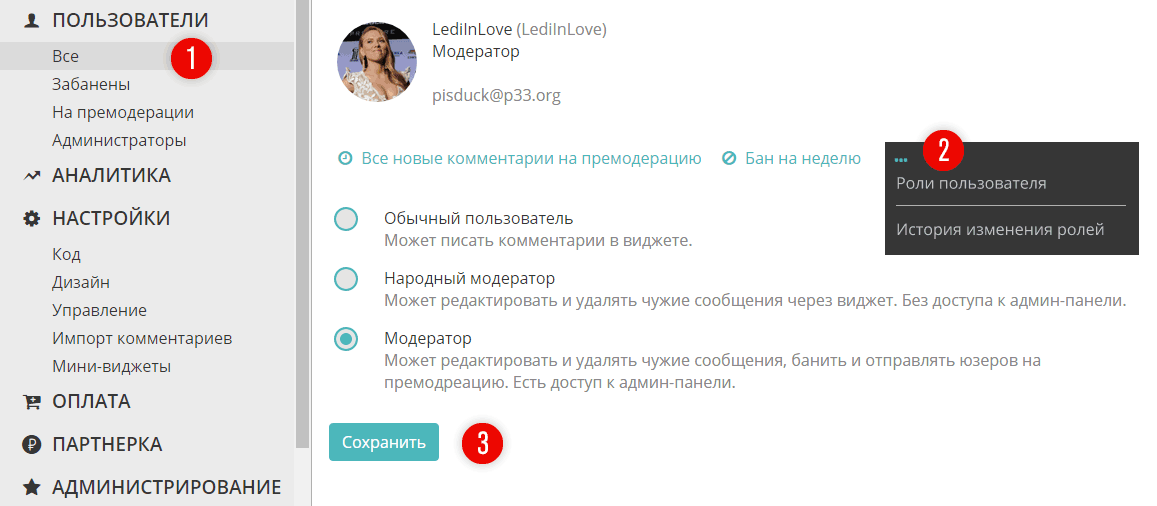
You can add more moderators via the Users section of the administration panel (p.1). Of course the user who is intended to become a moderator, should be registered in the widget. Find him or her in this list, click three dots and choose «User’s capacities». Appoint the needed capacity and do not forget to save changes (p.3).
It seems to be organized in a quite simple way, but still we’ve made a whole post about it. Here are highlights:
- Every new comments at the site is sent to the section «Unread». There a moderator can approve, delete or edit it. And via the context menu it is possible to ban user or to send all his or her new comments to premoderation.
- The section «Premoderation» collects all the comments from users, which were chosen for premoderation, and all the messages, that contain stop-words or that were indentified by Tolstoy Comments as spam. If the global premoderation mode is on all new comments will be also sent to this section. Do not forget to look them through.
- The section «All comments» collects all the comments without exceptions (oh really?!).
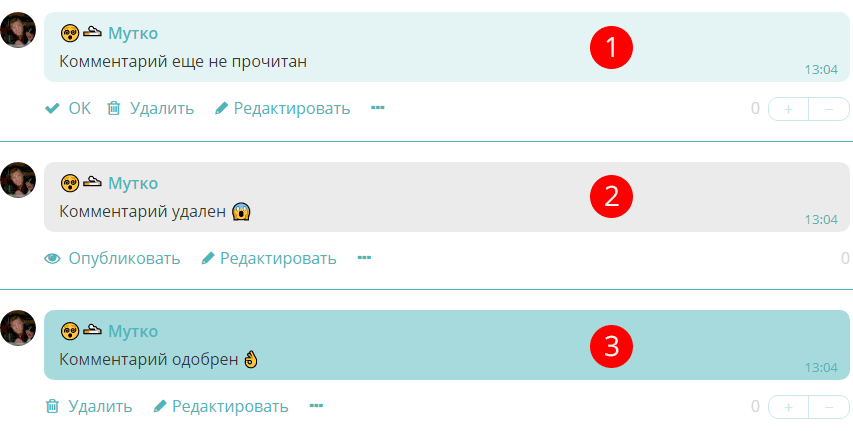
Depending on their status they are marked by different colors. Pale turquoise (p.1) — the comment is published but has not been checked by the moderator yet. Grey (p.2) — the comment is not visible at the site (deleted / identified as spam / written by user in premoderation mode), it is waiting for the moderator approval. Deep turquoise (p.3) — the comment is published and has been already approved by the moderator.
The user can’t edit comments approved by the moderator regardless global site settings.
This is made of the same safety considerations (defence from spam and obsceneties). However the user has right to delete his or her message, approved by the moderator (if the site settings let him or her do it, of course).
A nice bonus. The administrators can moderate (edit / delete) messages at the site directly, without visiting the administration panel.
And here is more information about how to add extra moderators.
No, unless you’ve blocked it yourself. If you still can’t see widget at the page, please read the next advice.
You should import comments of a thirdparty comment system from its xml file. In case with Disqus you need to unzip an export gz-file. If the problem still exists, please write to help@tolstoycomments.com and send us a link to download an export file.
To make it you need just to buy the PRO tariff. In the Management section there will appear a possibility to turn on a White-label function. It is responsible for our copyrights.
To connect users verification by SMS buy the PRO tariff and send a request to help@tolstoycomments.com
As of February 2020, the situation is the following. Link to Facebook profile will open only if the user is in your friend list — that’s the policy of this social media. Otherwise the page will open with an error.
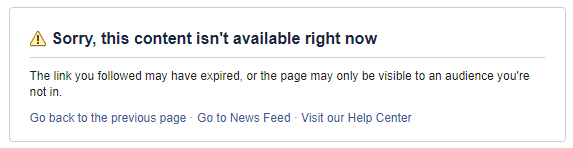
A similar error can happen with profiles registered via Google. If the user has a profile at Google.plus, the link will open. If he or she doesn’t have one, an error “Link to profile not found” will appear.
The sorting principle of the titles in the left column of chats is the following. If the user is not logged in the widget, they are sorted by the last comment date.
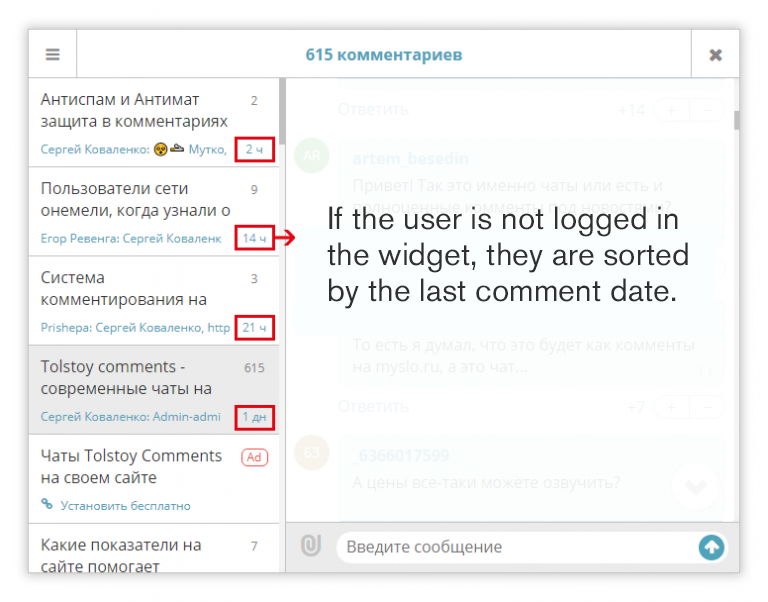
If the user is logged in, chats are sorted by the following principle:
- Red notifications mean that there are new comments in the chats you’ve written a comment before.
- Grey notifications mean that there are new comments in the chats you’ve looked through before.
- Then there are chats with the latest comments sorted by time of their appearance.
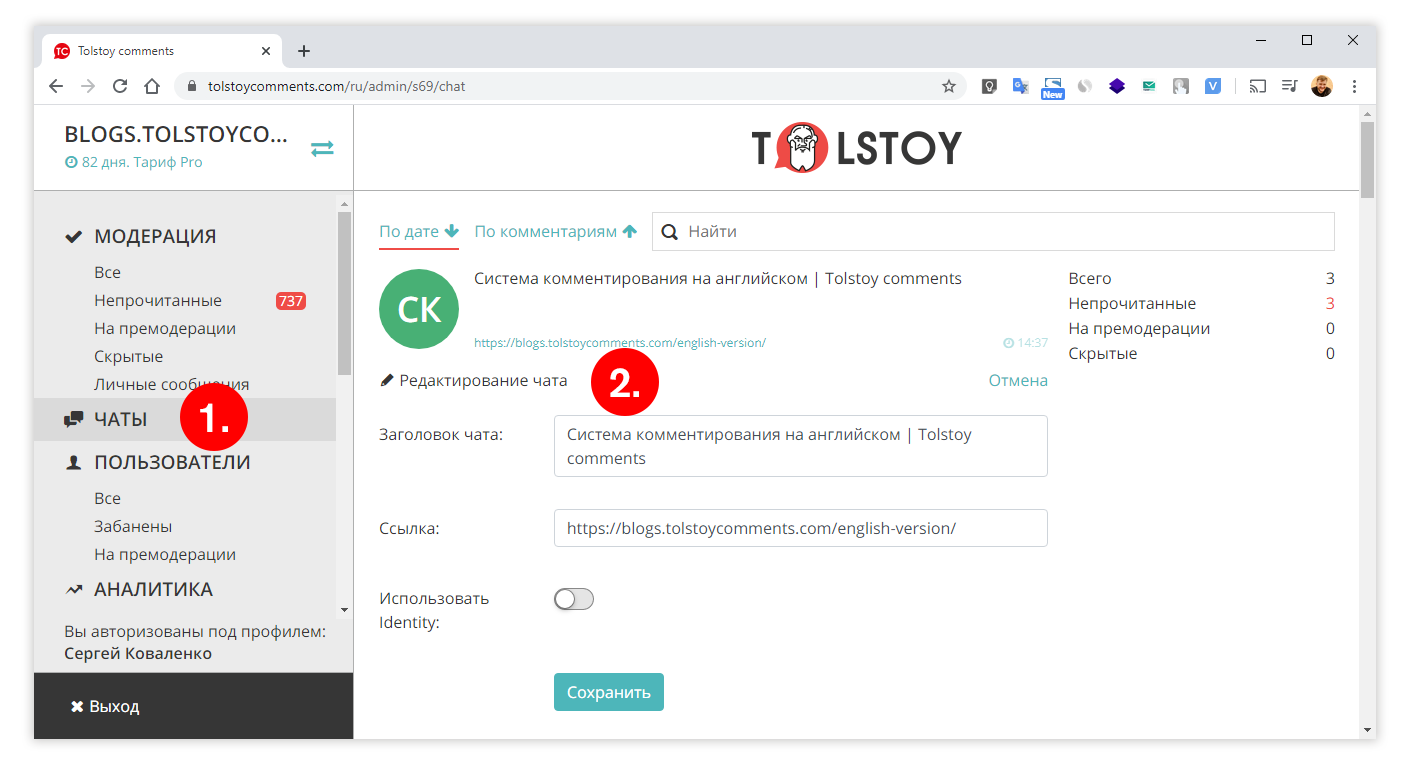
The title inside the widget is created once — with the first comment. To edit it please follow to the Chats section (p.1) of the Tolstoy Comments administration panel. Click to edit (p.2).
You need to pay any tariff to remove this restriction.
To do it you need to have comment linkage by Identity. Read more in our api at GitHub.
When the license is not paid you can’t moderate comments or change site settings anymore. Thus if somebody write something offensive or obscene at your site you won’t be able to edit or delete this message. The comments themselves won’t disappear and your users can continue using the widget. You can export comments from Tolstoy Comments only when any fee-based tariff is on.
Yes we do. To turn it on please go to «Stop-words» in the Management section of the administration panel. It is empty by default. You can fiil it by your preference. By the way, here is a nice set-list to begin with. Comments with stop-words will be automatically sent to premoderation. Read more.
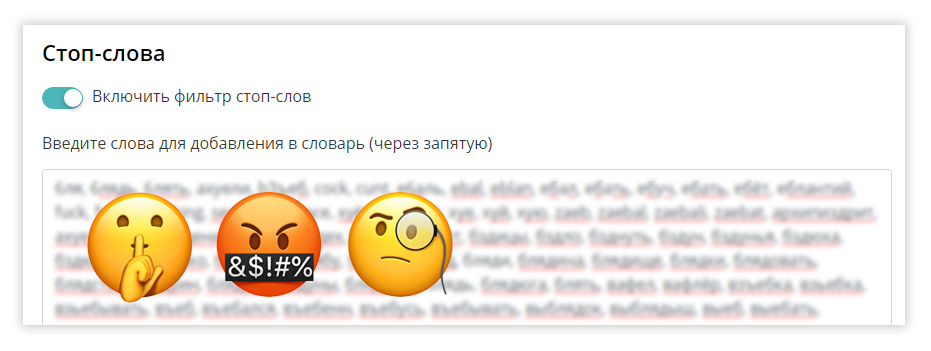
We have a secret integral anti-spam defence. Plus you can use a list of stop-phrases (it is off by default). To turn it on choose «Stop-words», «Stop-phrases» in the Management section of the administration panel. You can edit and enlarge the list with links and advert expressions by your discretion (by the way, here is a nice set-list). Comments with stop-phrases will be automatically sent to premoderation. Read more.
NB Some spammers are the best minds of the mankind, so the war with advert of wonders for virility has no end. Don’t hesitate to write to our support with any case, we’ll fight with spam together.
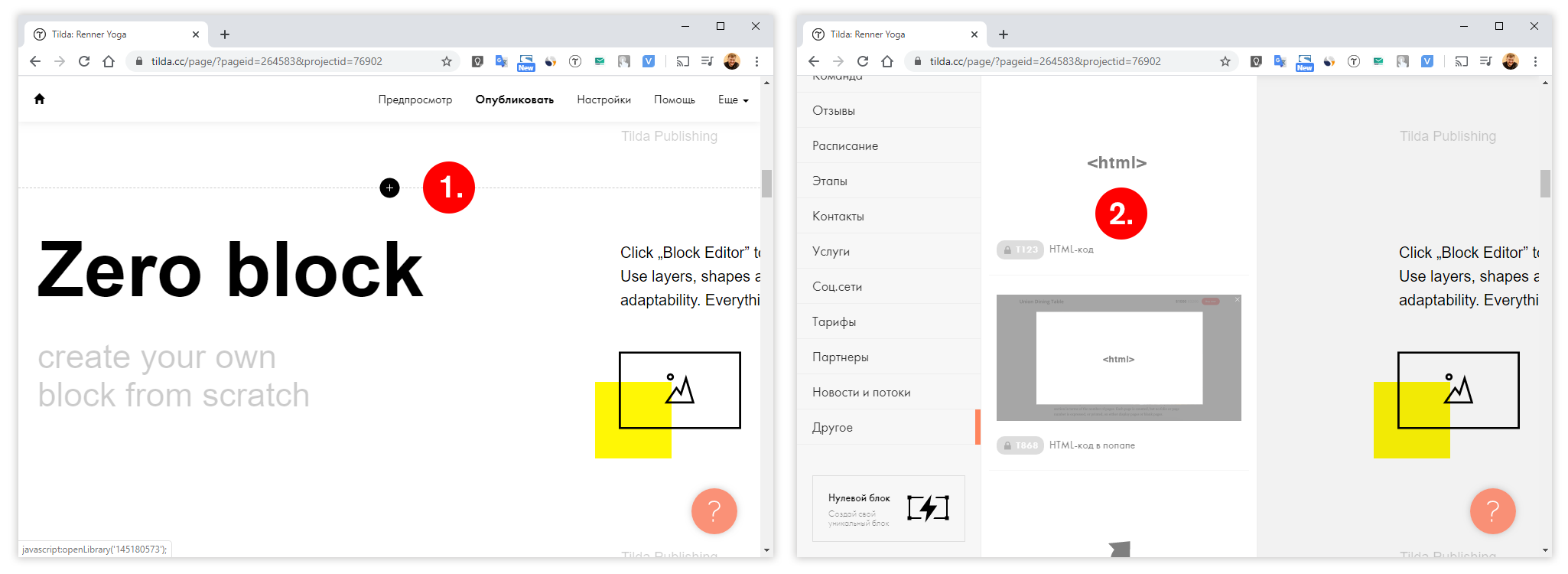
Sure you can. You need to be at fee-based Tilda tariff. In the website builder add a new block (p.1) to the place where you would like to see our comments. In the very end of the left column choose block type — «Other — html-code» (p.2) and insert the code from the Tolstoy Comments administration panel.
Yes, it’s possible. Use the title parameter. You can output any constant value or, for example, data from H1, to the chat title.
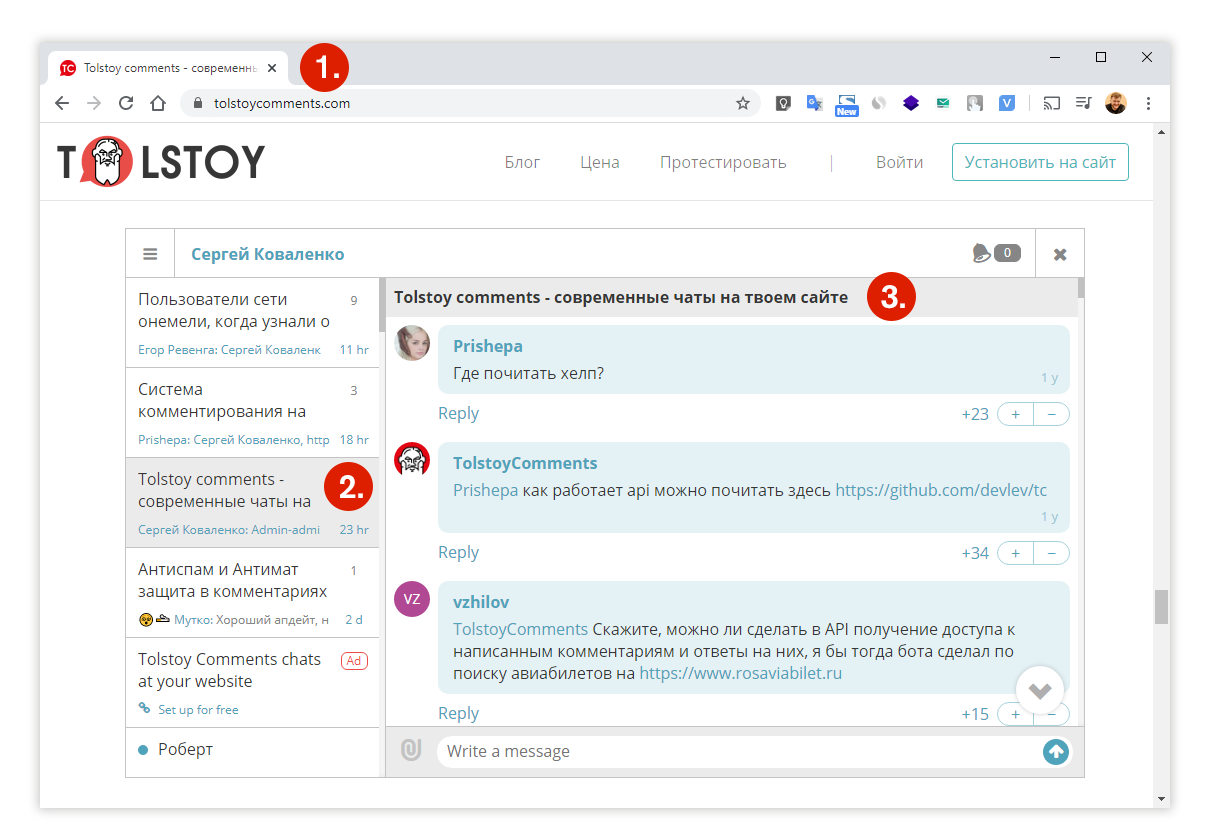
By default data for p.2 and p.3 are taken from the title of the page p.1
If you use WordPress plugin, the comment counter will work since the moment of its installation from the store. In other cases you need to use a special api component.
At WordPress, it will work by default if the widget was installed by the indexation plugin. In other cases you need to do some manipulations with API. As any external comment system, Tolstoy Comments works through iframe, that’s why for the search engine indexation you need first to save the comments from the widget to your local database and render them on HTML-pages. Read detailed instruction how to do it right here. We consult in the comments there.